
The right pen display monitor can make sketching, retouching, animation, and design work feel more direct while giving your studio the resolution and color accuracy professionals expect. This roundup compares 10 options across different sizes, workflows, and budgets.
We look at display quality, pen and touch support, connectivity, ergonomics, calibration features, and compatibility so you can choose a monitor that fits your creative setup instead of simply chasing the largest panel.
Best 10 Pen Display Monitors for Professional Studios Picks for 2026
Established Studio Pick

- 24-inch Full HD LCD drawing surface
- Battery-free pen with 2048 pressure levels
- Adjustable stand and VESA mounting
Best For: Drawing, annotation, and signature workflows
Color Management Choice

- 27-inch 4K color-managed display
- 99% Adobe RGB and DCI-P3 coverage
- Hardware calibration with built-in calibrator
Best For: Color-critical graphics and video editing
Touch Workflow Pick
ViewSonic ID2456-4K Display Tablet
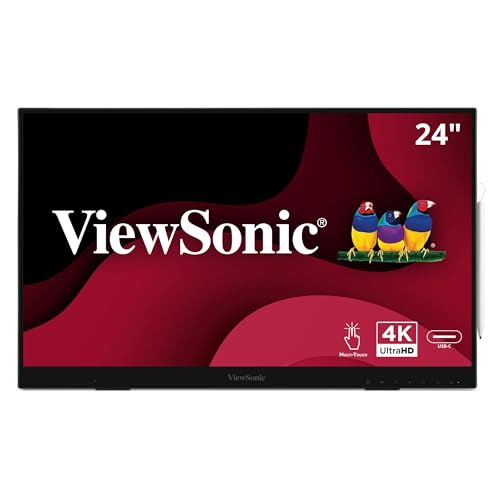
- 24-inch 4K IPS touchscreen
- 8192-level active stylus
- USB-C, HDMI, DisplayPort, and USB hub
Best For: Touch drawing, markup, and handwriting
High-Resolution Mac Studio Pick
ASUS ProArt PA32QCV 6K Monitor

- 31.5-inch 6K display for expansive detail
- 98% DCI-P3 and factory Delta E below 2
- Thunderbolt 4 with up to 96W power delivery
Best For: Mac-based photo, video, and filmmaking studios
Compact Drawing Workstation

- 11.6-inch Full HD IPS display with 100% sRGB
- Battery-free 8,192-level pressure-sensitive pen
- Six shortcut keys and programmable touch bar
Best For: Compact digital drawing, animation, and photo-editing setups
Color-Accurate Studio Monitor

- 32-inch 4K IPS panel for detailed creative work
- Factory calibrated with Delta E less than two
- 100W USB-C supports single-cable laptop setups
Best For: Photo/video editing and color-conscious studio workflows
HDR Production Powerhouse

- 31.5-inch 4K QD-OLED with 1,000-nit peak brightness
- Dual 12G-SDI for real-time 4K video playback
- 10-bit color and hardware calibration support
Best For: HDR production, post-production, and professional video monitoring
Best Dual-Screen Touch Setup
ViewSonic TD2455 24-inch 1080p Touch Monitor 2-Pack

- Two 24-inch IPS touch displays with included stylus pens
- USB-C video, data, audio, and up to 65W charging
- Color uniformity function and ergonomic adjustments
Best For: Studios needing a flexible dual-screen touch workspace
Best Portable Pen Display
ASUS ProArt PA169CDV 15.6-inch 4K Monitor

- 4K IPS touchscreen with Wacom EMR ProArt Pen
- 100% sRGB, Calman Verified, and factory Delta E below 2
- Portable 2.4-pound design with ASUS Dial controls
Best For: Mobile creative professionals needing accurate pen input
Best High-End Studio Monitor
ASUS ProArt PA279CDV 27-inch 4K QD-OLED

- 4K QD-OLED panel with 120Hz refresh and 0.1ms response
- 100% sRGB, 99% DCI-P3, and Delta E below 1.5
- USB-C 96W charging, Auto KVM, and DisplayPort daisy chaining
Best For: Color-critical desktop studios needing a large professional display
Established Studio Pick – Wacom DTK-2451 Pen Display
For studios that want a large, straightforward drawing surface, the Wacom DTK-2451 is a practical option among pen display monitors for professional studios. Its 24-inch Full HD screen, adjustable stand, and battery-free cordless pen support drawing, writing, annotation, and signature capture.
Best For: Drawing, writing, annotating, and signature-focused workflows that use a DVI-equipped computer.
Pros:
- Large 24-inch LCD with a 1920×1080 native resolution.
- Battery-free cordless pen with 2048 levels of pressure sensitivity.
- Adjustable stand and VESA mounting holes support flexible positioning.
- DVI-I video connectivity accommodates analog and digital connections.
Cons:
- Its 1920×1080 resolution is lower than the 4K and 6K alternatives here.
- Connectivity centers on DVI and USB rather than USB-C or Thunderbolt.
- Listed operating-system compatibility goes up to Windows 10 and macOS X 10.11 or later.
The DTK-2451 prioritizes a spacious, familiar pen-display setup over newer high-resolution and USB-C features. It makes the most sense when the studio already has compatible DVI infrastructure and values an adjustable, VESA-ready workspace.
Color Management Choice – BenQ PD2770U 4K Monitor
The BenQ PD2770U is a strong fit for color-conscious teams comparing pen display monitors for professional studios, although it is presented as a color-management monitor rather than a pen display. Hardware calibration, a built-in calibrator, and broad color coverage make it suited to graphics and video editing workflows.
Best For: Graphic designers, video editors, and studios needing calibrated 4K color on a 27-inch screen.
Pros:
- 4K UHD resolution with 99% Adobe RGB, 99% DCI-P3, and 100% Rec.709 coverage.
- Hardware calibration, built-in calibration tools, and uniformity calibration support consistent output.
- 96W USB-C power delivery, RJ45 LAN, KVM, and DisplayPort daisy chaining streamline studio setups.
- Magnetic shading hood, Hotkey Puck, and adjustable stand support focused work.
Cons:
- The supplied notes do not identify an integrated pen or touch input.
- Its 60Hz refresh rate is aimed at color work rather than high-refresh applications.
- It has one listed USB port, so hub requirements should be checked against the studio setup.
The PD2770U is best understood as the color-accuracy specialist in this roundup. Choose it when calibrated image quality and modern studio connectivity matter more than drawing directly on the panel.
Touch Workflow Pick – ViewSonic ID2456-4K Display Tablet
The ViewSonic ID2456-4K combines a 24-inch 4K IPS display with 10-point PCAP touch and an active stylus, making it one of the more direct choices for teams seeking pen display monitors for professional studios. USB-C can carry touch recognition and power over one cable, while HDMI and DisplayPort provide additional connection options.
Best For: Touch-enabled drawing, markup, handwriting, and interactive desktop workflows across Windows, Android, and Mac systems.
Pros:
- 24-inch 3840×2160 IPS display with wide 178-degree viewing angles.
- Active stylus offers 8192 levels of pressure sensitivity.
- 10-point PCAP touch supports direct on-screen interaction.
- USB-C, HDMI, DisplayPort, and a six-port USB hub provide flexible connectivity.
Cons:
- At 250 nits, brightness is more suited to typical desktop environments than bright studio spaces.
- The 14ms response time is not especially performance-oriented.
- Apple platforms require vTouch software for touch support.
The ID2456-4K offers a balanced blend of resolution, touch, and pen input in a relatively compact format. It is particularly compelling for studios that need interactive editing or annotation and want broad device compatibility.
High-Resolution Mac Studio Pick – ASUS ProArt PA32QCV 6K Monitor
The ASUS ProArt PA32QCV is designed for demanding visual work where resolution and color consistency are priorities. Its 31.5-inch 6K display, Calman Verified factory calibration, MacBook color-matching mode, and Thunderbolt 4 connectivity make it a high-end consideration among pen display monitors for professional studios, though the supplied specifications do not list pen or touch input.
Best For: Mac-focused photo, video, filmmaking, and other color-sensitive studio workflows requiring a large 6K canvas.
Pros:
- 31.5-inch 6016×3384 6K display provides substantial workspace and detail.
- 98% DCI-P3 and 100% sRGB coverage support wide-gamut production work.
- Calman Verified factory calibration delivers Delta E below 2.
- Dual Thunderbolt 4 ports with up to 96W power delivery support daisy chaining and laptop workflows.
Cons:
- The supplied notes do not identify an integrated pen or touchscreen.
- Its 60Hz refresh rate is oriented toward content creation rather than high-refresh use.
- Its larger 32-inch-class footprint and 20.5-pound weight require suitable desk space.
The PA32QCV is the resolution leader here and a natural fit for Mac-centered creative teams. Its ergonomic adjustments, Auto KVM, and strong connectivity add workflow flexibility, while the lack of listed pen input means it is better paired with a separate tablet for direct drawing.
Compact Drawing Workstation – XP-PEN Artist12
For artists seeking pen display monitors for professional studios without taking up much desk space, the XP-PEN Artist12 combines an 11.6-inch Full HD IPS screen with a battery-free stylus. It connects to a computer through HDMI and USB and supports Windows, Mac, Linux, and popular creative applications.
Best For: Digital drawing, animation, photo editing, online teaching, and compact studio setups.
Pros:
- 1920×1080 IPS display with 100% sRGB coverage and a pre-installed anti-reflective screen protector.
- Battery-free pen provides 8,192 pressure levels and includes a digital eraser.
- Six customizable shortcut keys and a programmable touch bar can speed up common tasks.
- Includes a multi-function pen holder, replacement nibs, and drawing glove.
Cons:
- Requires a separate computer and available HDMI and USB-A ports, or suitable adapters.
- The 11.6-inch workspace may feel limited for complex professional projects.
The Artist12 is a practical entry point for studio artists who prioritize direct pen input and portability. Its smaller display and computer-dependent setup are trade-offs for the compact footprint and accessible shortcut controls.
Color-Accurate Studio Monitor – ViewSonic VP3256A-4K
The ViewSonic VP3256A-4K is a strong option for studios that need a large screen for image and video work. Its 32-inch 4K IPS panel, factory calibration, Pantone validation, and single-cable USB-C connectivity make it well suited to professional creative desks, though it is a conventional monitor rather than a pen-enabled display.
Best For: Photo and video editing, color-conscious creative work, and laptop-based studio workflows.
Pros:
- 32-inch 3840×2160 IPS display provides generous workspace and sharp detail.
- Factory-calibrated to Delta E less than two with 100% sRGB and Rec. 709 coverage.
- Pantone Validated for dependable reproduction of Pantone Matching System colors.
- USB-C carries video, audio, data, and up to 100W of laptop power.
Cons:
- It is not a pen display, so drawing requires a separate graphics tablet or pen display.
- The 60Hz refresh rate is aimed at creative production rather than high-refresh gaming.
For professional studios comparing pen display monitors with larger reference screens, the VP3256A-4K makes sense as a color-focused companion display. Its ergonomic stand and 100W USB-C power delivery can also simplify a laptop-centered workspace.
HDR Production Powerhouse – ASUS ProArt Display PA32USD
The ASUS ProArt Display PA32USD targets high-end studios that need exceptional contrast, HDR capability, and professional video connectivity. Its 31.5-inch 4K QD-OLED panel supports 10-bit color, broad gamut coverage, hardware calibration, and dual 12G-SDI inputs, making it a premium reference display rather than a direct pen-input solution.
Best For: HDR content creation, professional video playback, color-critical post-production, and advanced studio monitoring.
Pros:
- 4K QD-OLED panel delivers 1,000-nit peak brightness and a 1,500,000:1 contrast ratio.
- True 10-bit color supports 100% sRGB, 99% DCI-P3, and BT. 2020 coverage.
- Dual 12G-SDI inputs enable uncompressed 4K at 60Hz real-time playback.
- Includes hardware calibration support, a monitor hood, two stand options, and a five-year warranty with registration.
Cons:
- It is a professional reference monitor, not a pen-enabled drawing display.
- Its extensive connectivity and premium features may exceed the needs of basic illustration workflows.
The PA32USD is best considered alongside pen display monitors for professional studios when accurate HDR review and video signal handling matter. Artists may still need a separate pen display, but this ASUS model can serve as a powerful color-critical reference screen.
Best Dual-Screen Touch Setup – ViewSonic TD2455 24-inch 1080p Touch Monitor 2-Pack
For studios seeking pen display monitors for professional studios, this two-monitor ViewSonic bundle emphasizes touch interaction, color uniformity, and flexible connectivity. Each 24-inch Full HD IPS display includes a stylus pen and supports 10-point touch, making the pair useful for interactive creative workflows and multi-monitor setups.
Best For: Professional studios that need dual 24-inch touch displays for collaborative editing, annotation, or multimedia work.
Pros:
- Two 24-inch IPS monitors with 10-point touch and included stylus pens.
- Color uniformity function helps maintain consistent color and luminance across the screen.
- USB-C supports video, data, audio, and up to 65W charging, with daisy-chain capability.
- Adjustable stands, 178-degree viewing angles, speakers, FreeSync, and eye-care features add flexibility.
Cons:
- Full HD resolution is less detailed than the 4K alternatives in this roundup.
- The 60Hz refresh rate and 250-nit brightness are more suited to general studio work than demanding HDR production.
- The glossy screen finish may be less ideal in brightly lit studio environments.
The TD2455 bundle is a practical choice when two touch-capable screens matter more than maximum resolution. Its included pens, ergonomic adjustments, and streamlined USB-C connectivity make it particularly appealing for interactive studio work.
Best Portable Pen Display – ASUS ProArt PA169CDV 15.6-inch 4K Monitor
The ASUS ProArt PA169CDV is a compact option for professionals who need pen display monitors for professional studios that can also travel. Its 15.6-inch 4K IPS touchscreen combines Wacom EMR pen technology, factory color calibration, and USB-C connectivity in a 2.4-pound portable design.
Best For: Mobile designers, photographers, and video editors who want a high-resolution pen display for use between studio locations.
Pros:
- 4K UHD IPS resolution provides a detailed 3840 × 2160 workspace.
- Bundled ProArt Pen uses Wacom EMR technology for a pen-on-paper-like drawing experience.
- 100% sRGB coverage, Calman verification, and factory calibration to Delta E below 2 support color-sensitive work.
- ASUS Dial, Virtual Control Panel, dual kickstands, speakers, and a five-year warranty add professional utility.
Cons:
- The 15.6-inch screen offers less working area than a conventional 27-inch studio monitor.
- Its 60Hz refresh rate is aimed at creative production rather than high-refresh applications.
- Portable use requires a compatible HDMI or USB-C host and suitable cable setup.
With its sharp 4K panel and Wacom EMR pen, the PA169CDV is one of the most travel-friendly choices here. It makes the strongest case when accurate color and direct drawing control are needed in a compact format.
Best High-End Studio Monitor – ASUS ProArt PA279CDV 27-inch 4K QD-OLED
For color-critical production, the ASUS ProArt PA279CDV brings a large 4K QD-OLED panel to the category of pen display monitors for professional studios. It combines 120Hz performance, wide-gamut color, HDR support, USB-C power delivery, and a built-in KVM for studios managing multiple computers.
Best For: Professional editing and design work that benefits from wide color coverage, high contrast, smooth motion, and a spacious 27-inch canvas.
Pros:
- 26.5-inch 4K QD-OLED panel delivers 120Hz refresh and a 0.1ms response time.
- True 10-bit color, 100% sRGB, 99% DCI-P3, BT.2020 support, and Delta E below 1.5 suit color-sensitive workflows.
- USB-C provides up to 96W Power Delivery, while DisplayPort daisy chaining and Auto KVM support complex workstations.
- Ergonomic tilt, swivel, pivot, and height adjustments support long studio sessions.
Cons:
- The supplied notes describe the monitor as a professional display but do not list an included stylus or touch input.
- Its 27-inch desktop form factor is less portable than the PA169CDV.
- QD-OLED features and broad connectivity may be more than needed for basic office or multimedia work.
The PA279CDV is the most ambitious desktop display in this selection for demanding visual work. Its QD-OLED contrast, factory color validation, 120Hz refresh rate, and workstation-friendly connectivity make it a strong studio centerpiece, although it is not presented as a touch pen display.
How We Picked the Best Pen Display Monitors for Professional Studios
We selected these displays for professional creative workflows, prioritizing accurate color, useful resolution, dependable connectivity, and practical studio ergonomics. The list includes dedicated pen displays, touch-enabled monitors, portable drawing screens, and color-critical professional monitors that can complement an existing pen tablet.
Because studio needs vary, we considered panel size, 4K and higher resolutions, HDR or OLED performance, USB-C and Thunderbolt support, hardware calibration, touch capability, included stylus features, and adjustability. A screen’s best use depends on whether you draw directly on the image, manage color for print and video, or need a flexible multi-monitor workstation.
Quick Comparison
- Best for direct drawing: Wacom and XP-PEN pen displays provide an image-under-the-stylus workflow.
- Best for high-resolution studio work: ASUS ProArt 6K and 4K models offer substantial workspace and professional color features.
- Best for color management: BenQ and ViewSonic ColorPro displays emphasize calibration and wide-gamut coverage.
- Best portable option: The ASUS ProArt PA169CDV is easier to move between workstations.
- Best for touch workflows: ViewSonic’s touch displays support gestures and direct manipulation alongside compatible styluses.
Key Buying Factors for Pen Display Monitors for Professional Studios
Resolution and Screen Size
A larger 27- or 32-inch panel gives timelines, tool palettes, and reference windows more room, while 4K or 6K resolution keeps fine linework and detailed images sharp. Smaller displays are often easier to position and can suit compact desks or mobile setups.
Color Accuracy and Calibration
Look for wide-gamut coverage, factory calibration, Delta E ratings, Calman or Pantone verification, and hardware calibration support when work must translate reliably to print, web, or video. OLED can deliver exceptional contrast, but LCD panels may be preferable for sustained static desktop use.
Pen, Touch, and Connectivity
For direct illustration, check pen pressure sensitivity, latency, parallax, tilt support, and whether the stylus requires batteries. USB-C can simplify a laptop connection, while Thunderbolt, HDMI, DisplayPort, USB hubs, KVM, and daisy chaining help build a more capable studio system.
Ergonomics and Compatibility
Confirm operating-system compatibility, available drivers, stand adjustability, VESA support, and desk depth. A good viewing angle and stable support matter during long sessions, particularly for large touch or pen-enabled displays.
Who Should Buy Which Pen Display Monitors for Professional Studios?
Illustrators and concept artists should prioritize a responsive pen display with low parallax and comfortable tilt positioning. Photographers, editors, and colorists should favor calibrated wide-gamut monitors with strong connectivity and consistent viewing angles. Designers working across applications may benefit from 4K or 6K resolution, USB-C, KVM, and daisy-chain support. Artists with limited desk space or multiple locations should consider a compact or portable model, while studios upgrading an existing tablet setup may get more value from a large color-accurate monitor rather than another pen-enabled screen.